Seedream 6

Start with a description or a reference image, then shape the picture one detail at a time. Seedream 6 creates natural portraits, product scenes and text-led designs, with precise editing and transparent assets that give you room to keep developing the same idea.

Selected model

Seedream 6

Add an image to guide your creation
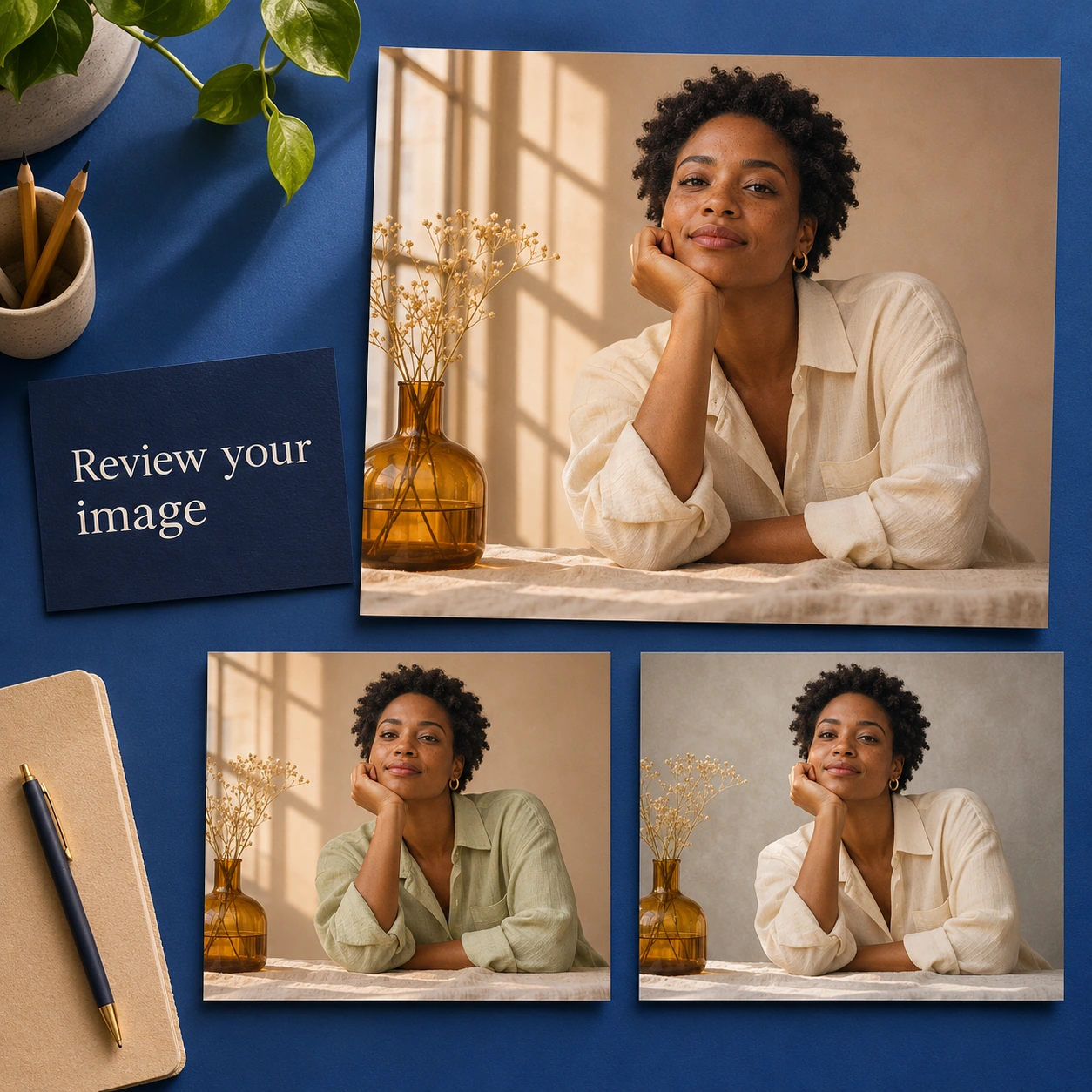
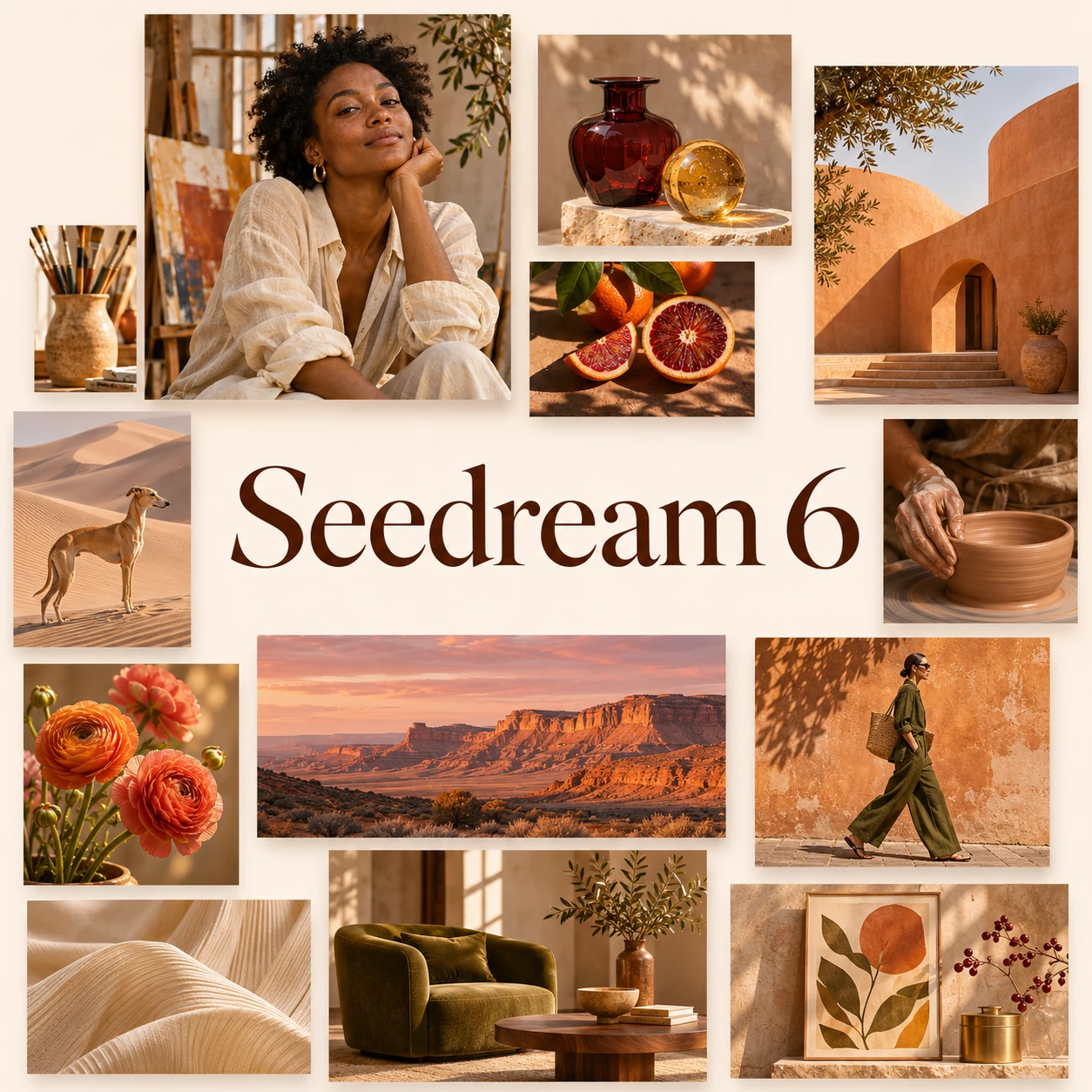
Illustrative window-lit portrait with natural curls, linen, amber glass and a flowering branch

Key Features of Seedream 6

Work with consistent edits, photographic detail, readable lettering and visual elements you can use across different designs.

Change Selected Details While Keeping the Scene

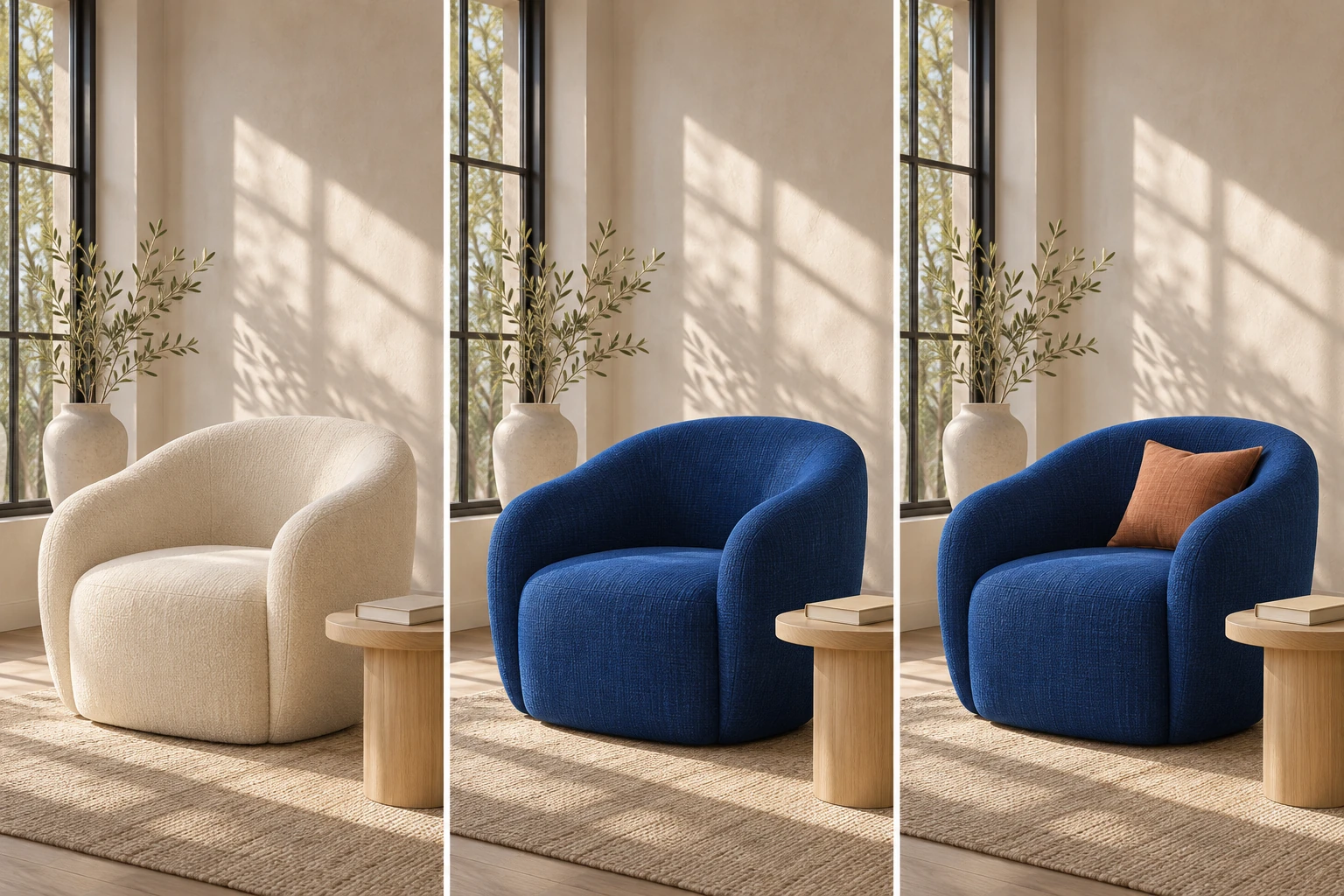
Try a blue armchair in the same room, then add a cushion without moving the furniture or changing the light. Seedream 6 lets you develop an image through focused revisions, carrying the composition forward as you adjust colors, objects and materials. This gives you a clearer way to compare creative decisions than starting again with a different scene for every version.

Try Seedream 6
Render Natural Light, Skin and Material Texture

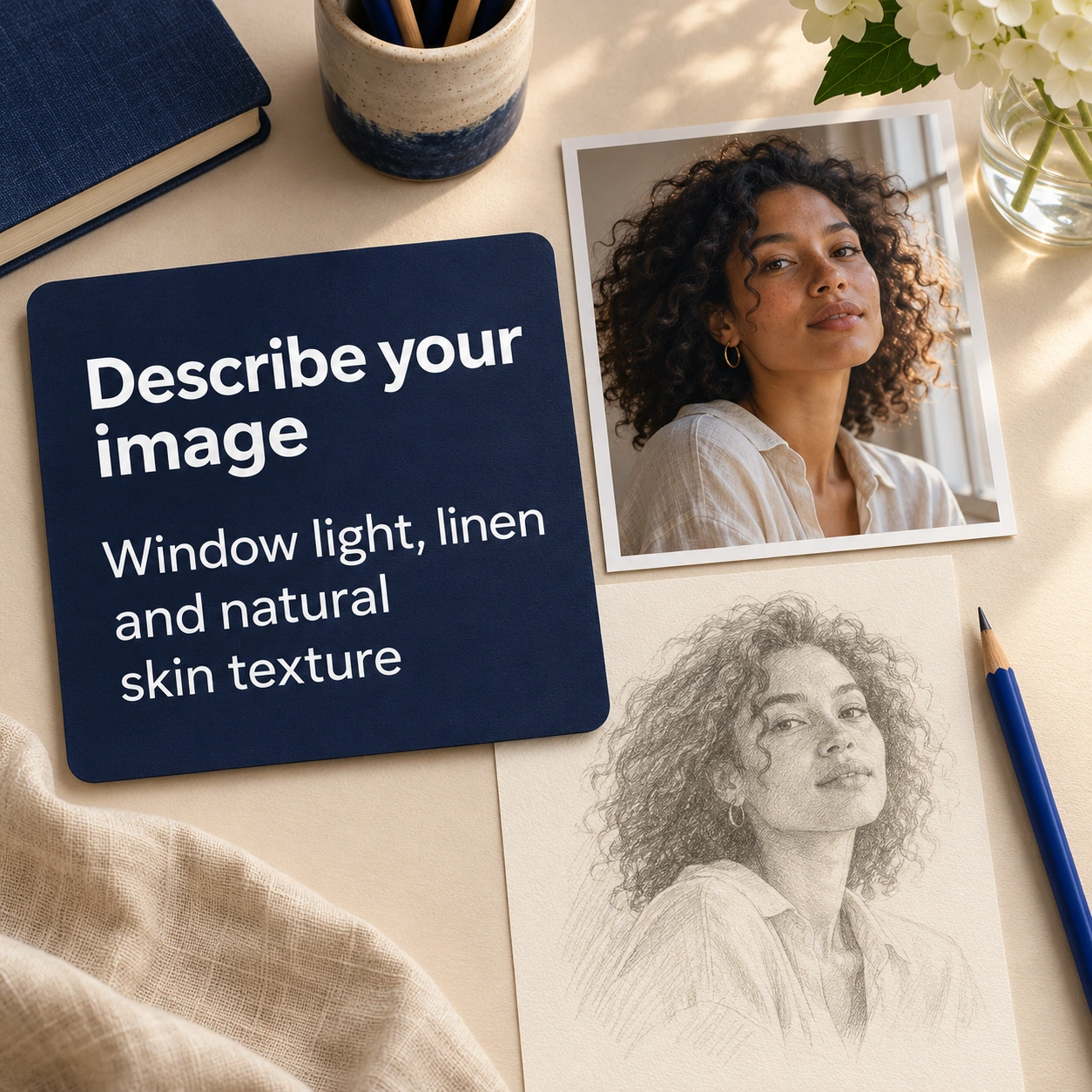
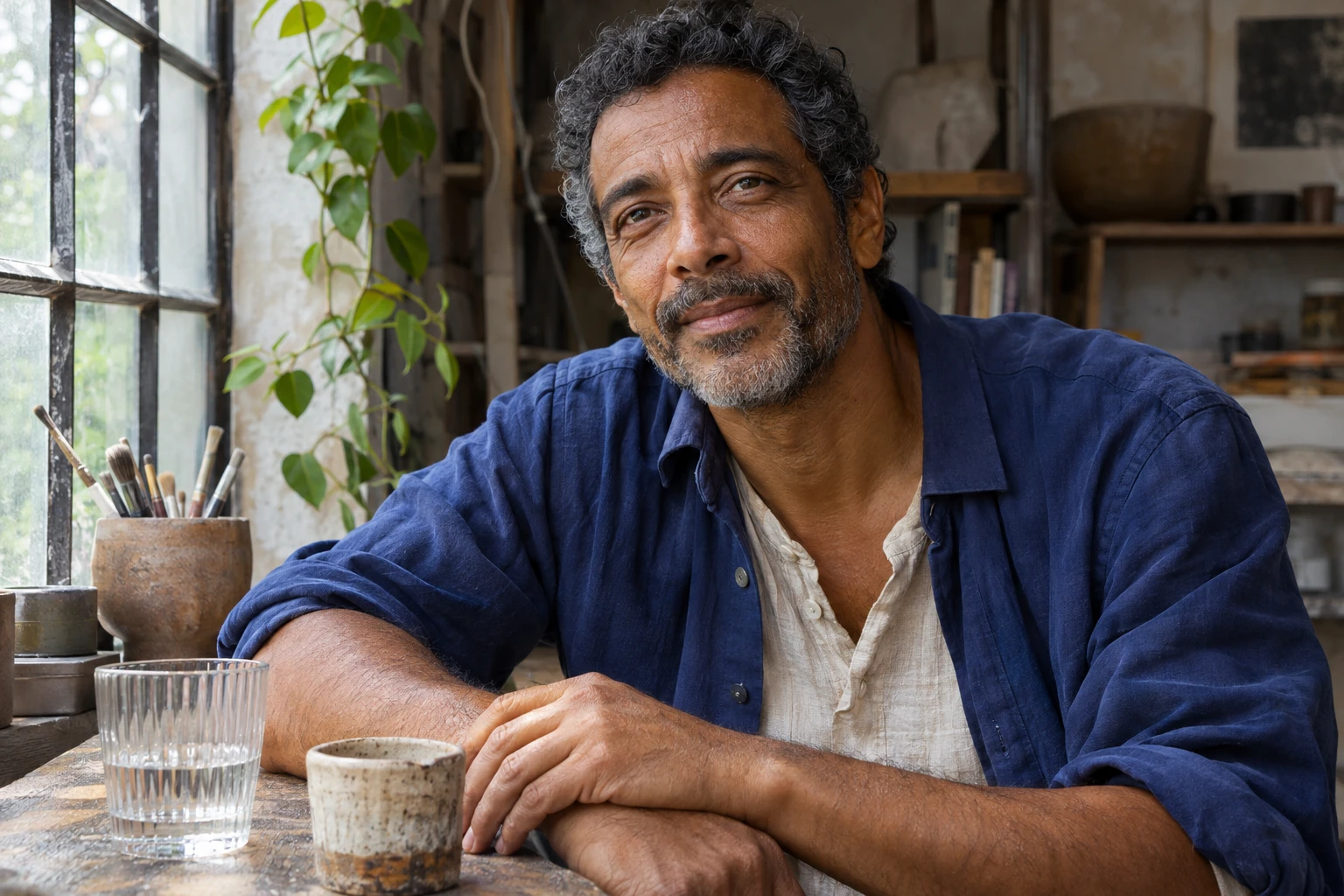
A portrait feels convincing when its details belong to the same light. Seedream 6 brings skin texture, fine hair, woven cloth and glass reflections into a coherent scene, with gentle transitions between highlights and shadows. Describe the lighting and materials you want, then refine the atmosphere for an editorial portrait, a lifestyle photograph or a product setting with a more considered photographic character.

Try Seedream 6

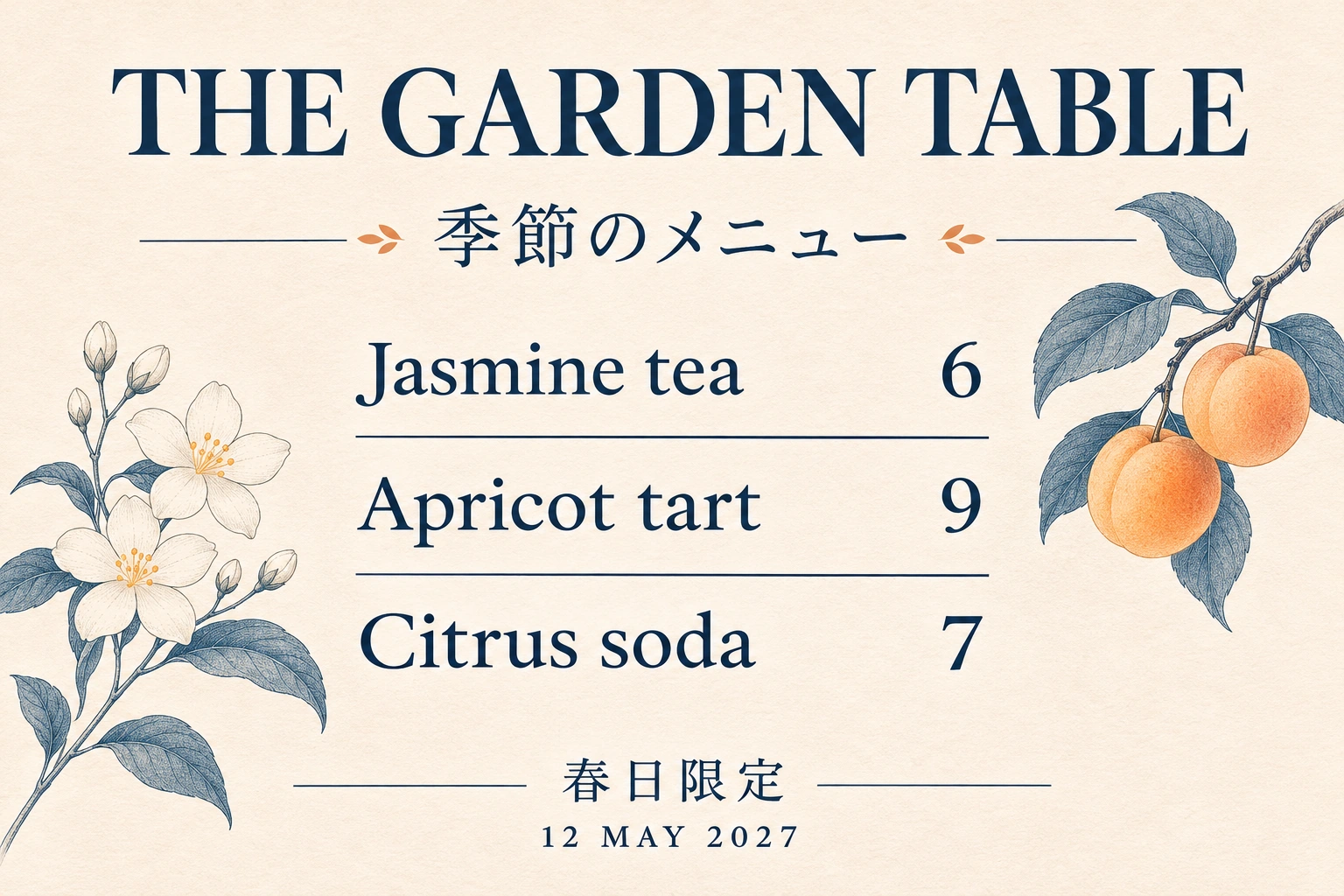
Give Headlines and Small Text a Clear Place

Build a menu, poster or illustrated explanation where the wording is part of the composition. Seedream 6 arranges headlines, supporting text, numbers and dates alongside the image, including different writing systems. Specify the exact copy and the order in which it should be read. The result can carry both a strong main message and the smaller details that make the design useful.

Try Seedream 6

Make Transparent Images for Different Backgrounds

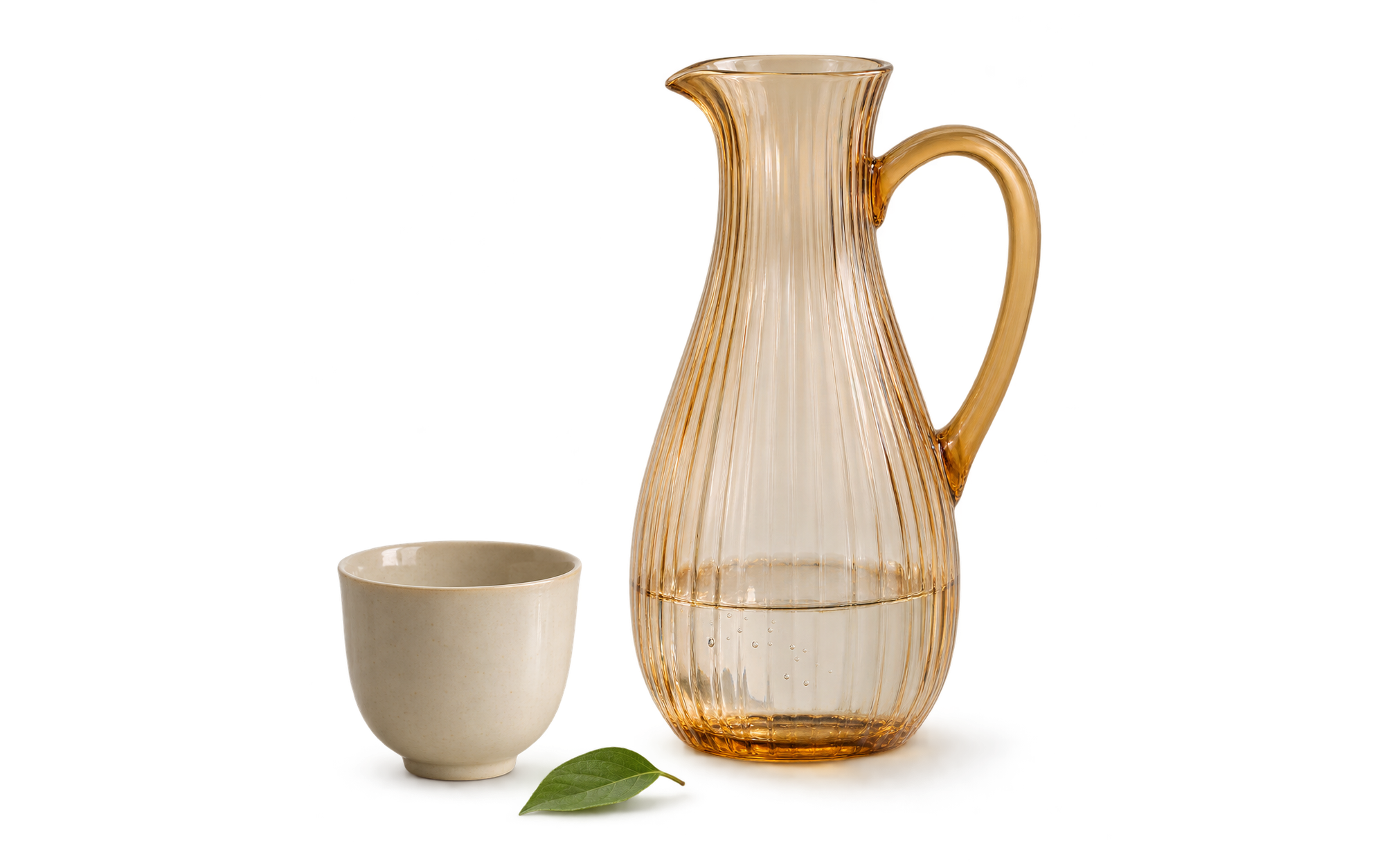
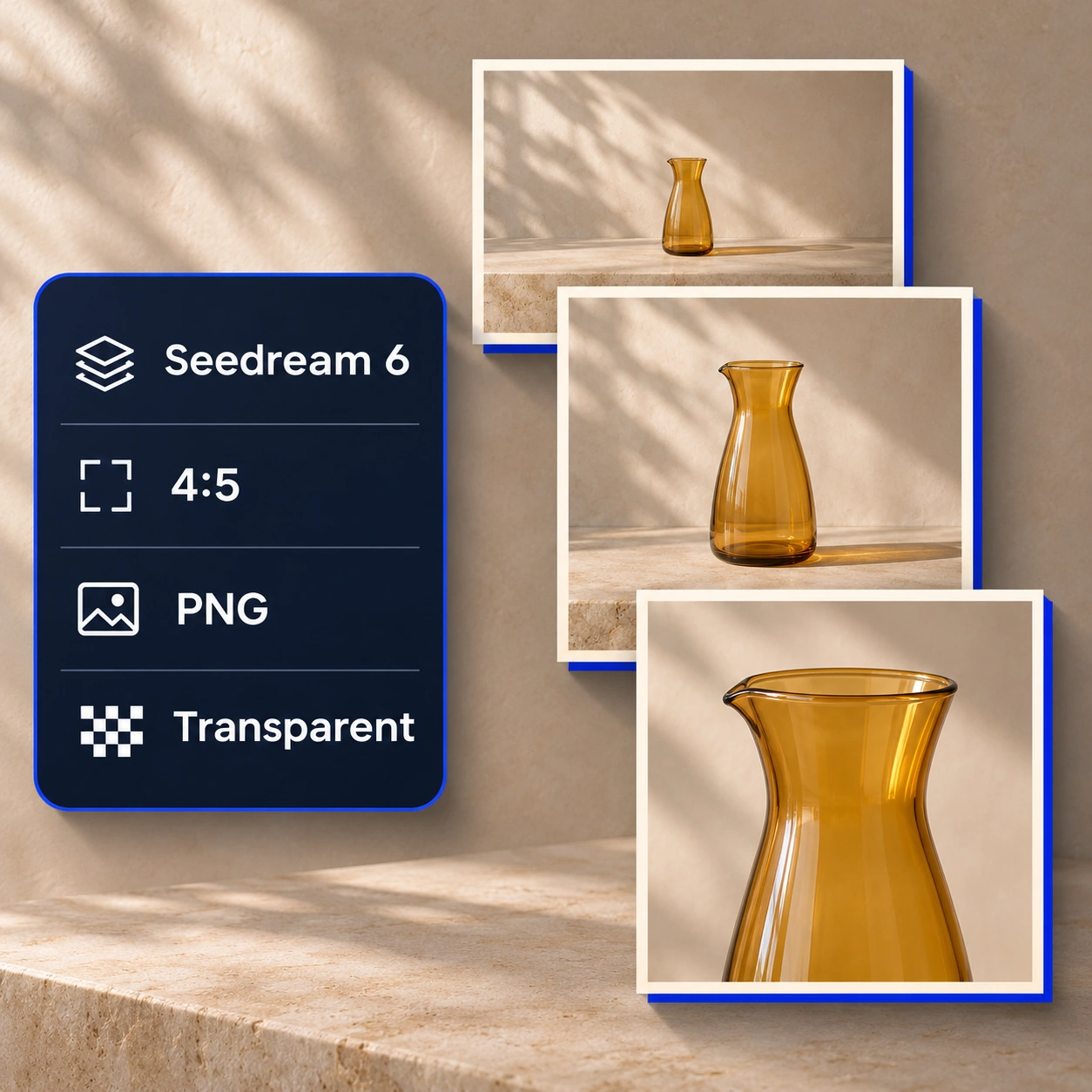
Create a glass vessel, product or illustration that can sit inside another design. Seedream 6 supports transparent images with clear subject edges and partial transparency in reflective materials and soft shadows. Reuse the same element on a dark poster, a pale product page or a colored presentation slide while preserving the details that a solid background would hide.

Try Seedream 6

Reuse the Elements Inside a Finished Design

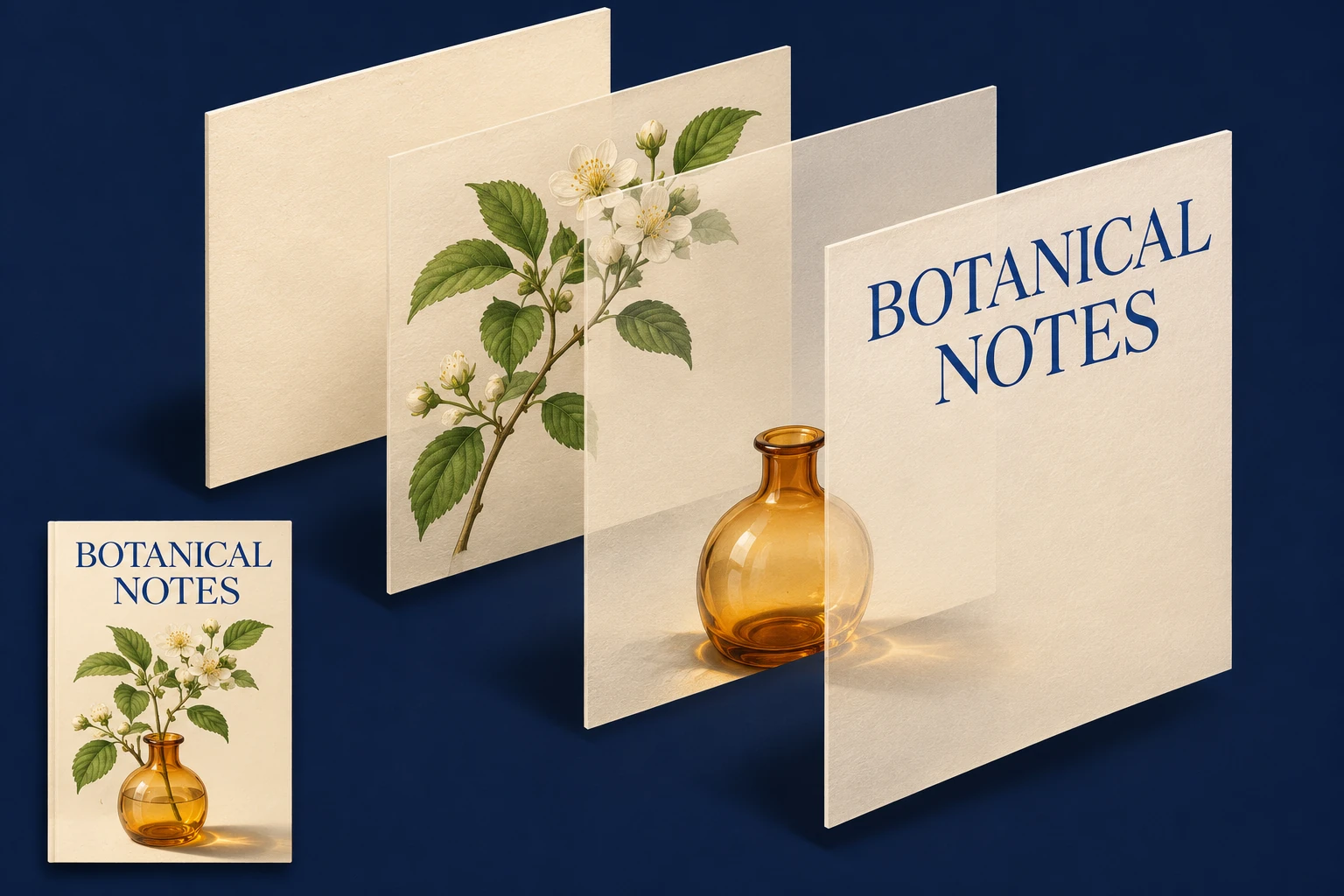
Keep working with a composition after the first layout is complete. Seedream 6 separates its background, objects and typography into individual layers, so a branch, product image or headline can become part of another format. Move the visual emphasis, update the wording or rearrange the elements for a new size while keeping the original design direction connected.

Try Seedream 6

How to Use Seedream 6

Describe the picture you need, choose how it should be delivered and refine the result with a clear next instruction.

STEP 01

Start with a Prompt or Reference

Choose Seedream 6 and describe your subject, scene, framing and light. Add an image when you want to carry over a person's appearance, a product's shape or an existing visual style.

STEP 02

Set the Format for Your Design

Choose an aspect ratio and the available output settings. Use a transparent background when you need an isolated element, then review the selected model and credit cost before continuing.

STEP 03

Review the Details and Keep Editing

Check the subject, lighting, edges and any text. Use the result as a reference for the next revision, explaining exactly what should change. Download the version that fits your brief.

Seedream 6 Use Cases

Develop connected portrait series, product imagery, information designs and illustrated worlds from a clear visual brief.

Develop a Fashion or Editorial Series

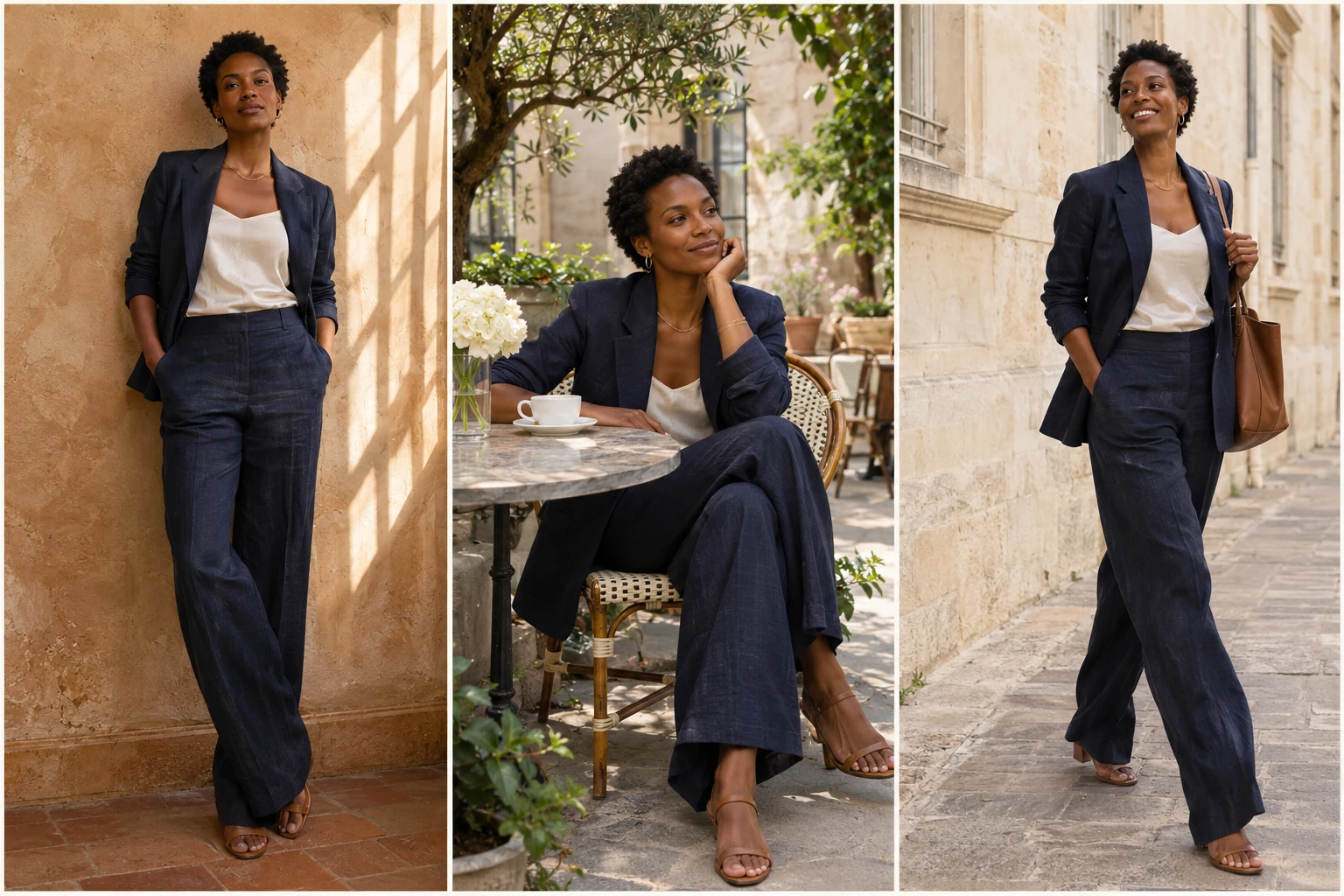
Explore the same person and outfit across a studio, cafe and outdoor setting. Keep the references, garment details and color direction consistent while changing the location or pose. Seedream 6 helps you develop the look of a series before the final selection, from the way window light falls on a face to the folds and texture of a linen suit.

Try Seedream 6

Create Product Images with a Shared Visual Style

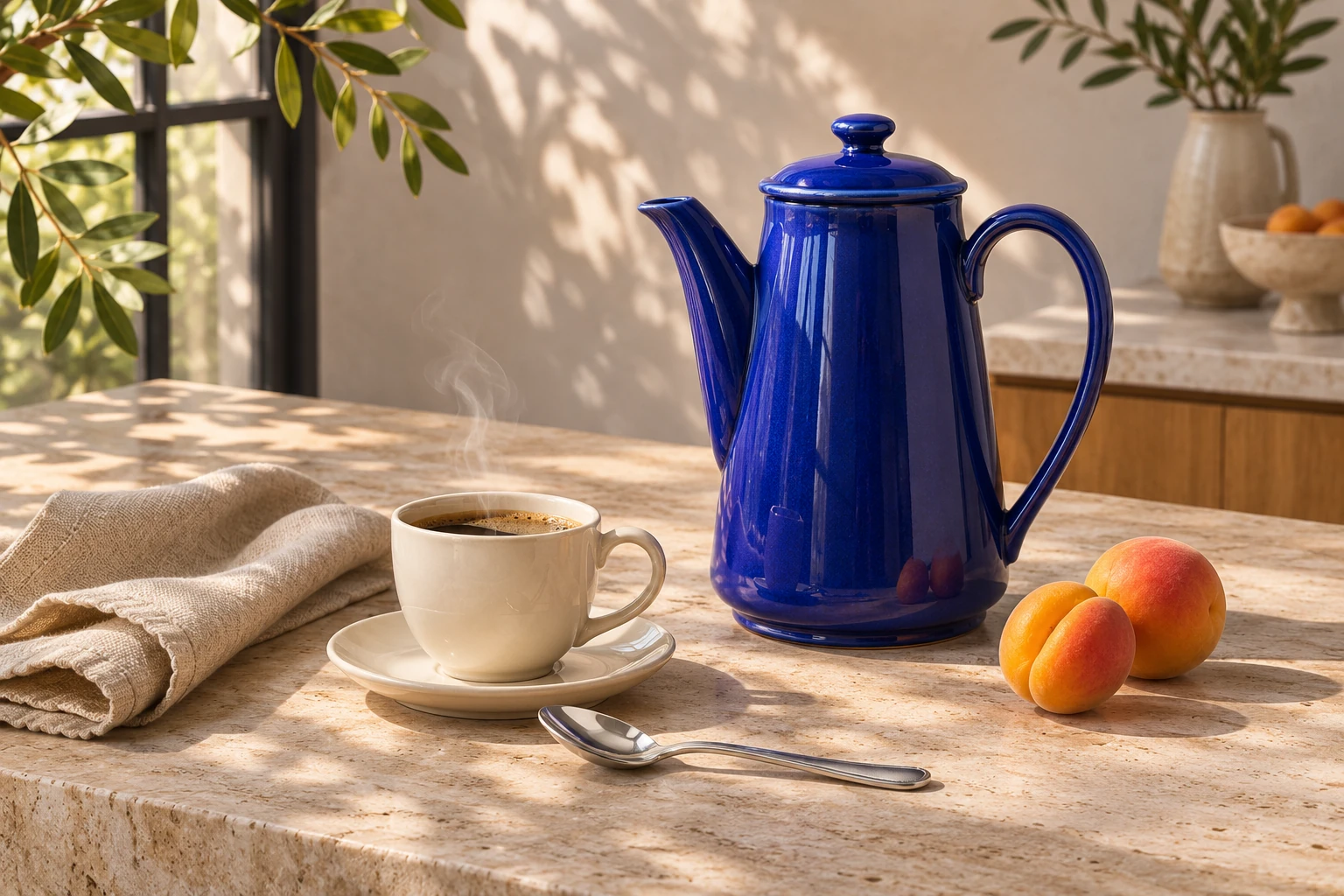
Build a recognizable setting around the products you want people to notice. Define the surface, props, palette and light, then use those choices across a launch image, store listing and campaign variation. A cobalt coffee pot can retain its glaze and proportions while the surrounding scene changes, giving a brand more options within the same visual direction.

Try Seedream 6

Turn Information into a Clear Visual Layout

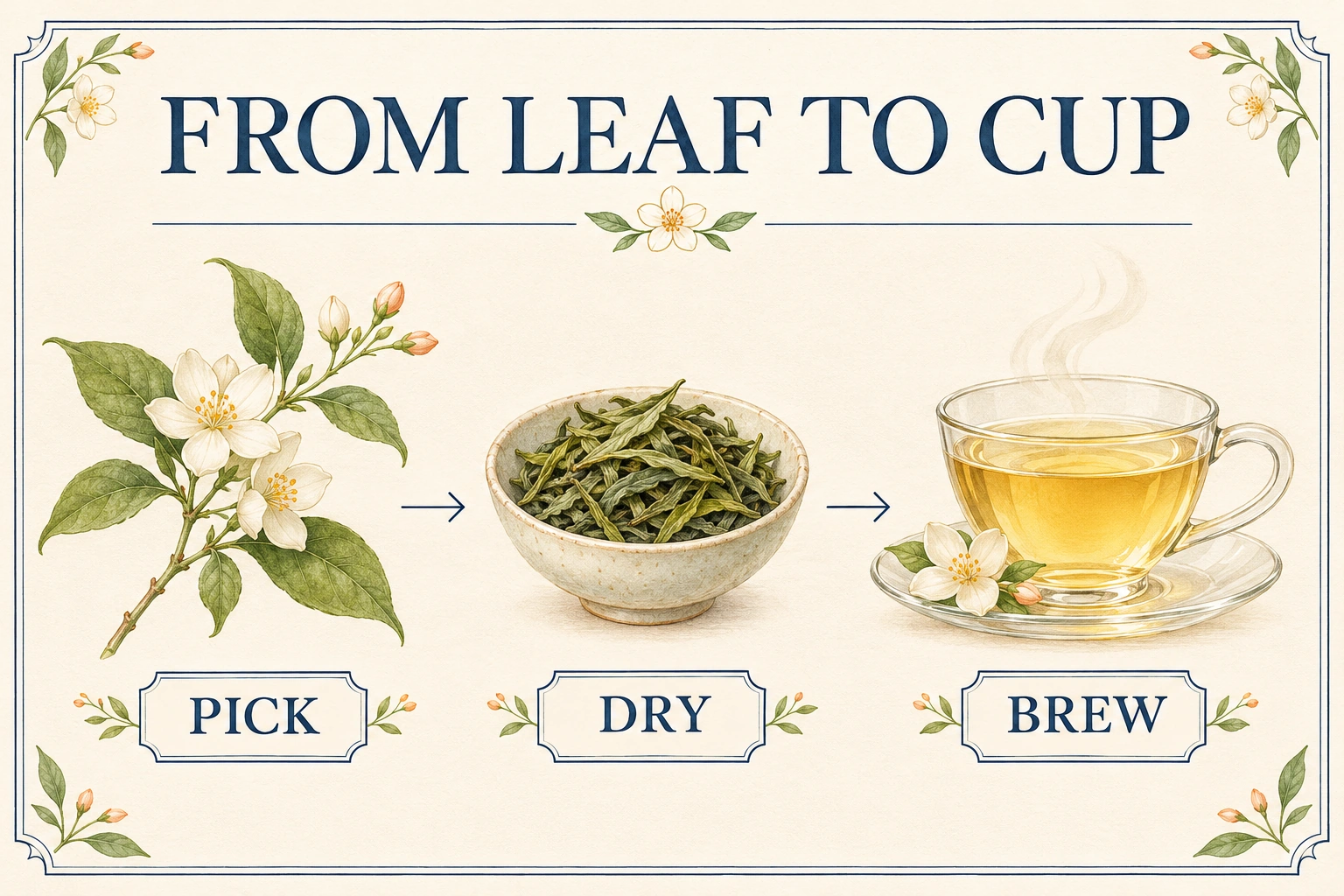
Explain a process with a coordinated set of illustrations, short labels and a readable headline. Seedream 6 can bring these parts together for an educational poster, product overview or simple infographic. Start with the information hierarchy, keep the wording focused and choose a visual sequence that helps the reader understand how the parts connect.

Try Seedream 6

Explore a Setting for an Illustrated Story

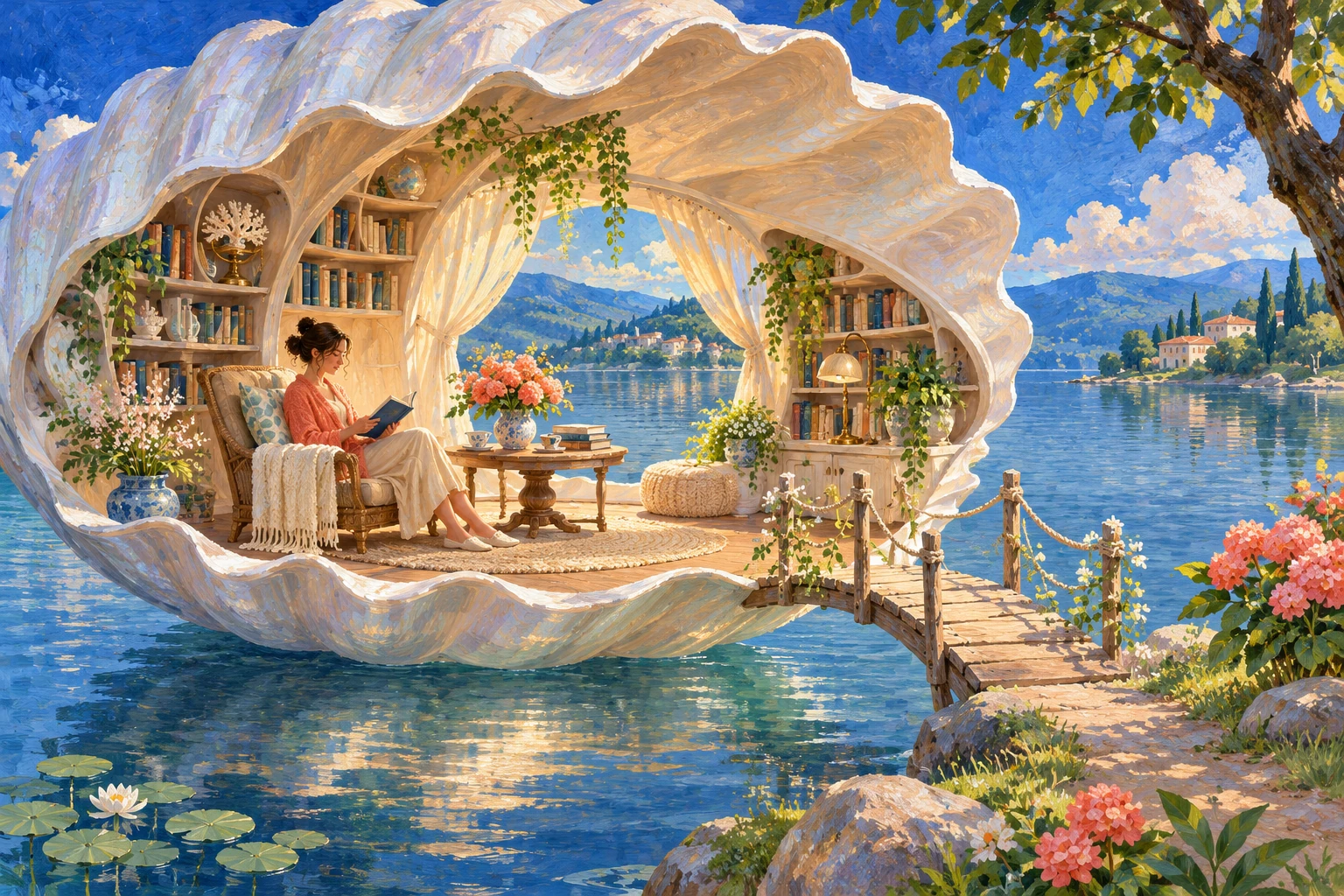
Describe a place that does not exist yet: a reading room inside a giant seashell, a greenhouse above the sea or a small shop in an imagined city. Establish the scale, materials and light, then refine the objects and characters within that setting. Use the image to develop a story's atmosphere, discuss an environment or guide a larger illustration project.

Try Seedream 6

Frequently Asked Questions About Seedream 6

Seedream 6 is an AI image generation and editing model for working from text and image references. It creates portraits, product scenes and graphic designs, supports targeted revisions, renders multilingual text and produces transparent images and reusable visual layers.

Create Your Next Image with Seedream 6

Start with a subject and a clear direction. Build the scene, refine a detail and turn the result into the image your project needs.

Try Seedream 6